Acer Iconia-484G64ns Dual-Touch Laptop In The Philippines
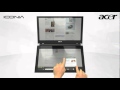
Acer Philippines has just announced the release of the Acer Iconia dual-touchscreen notebook announced as part of the company’s response to the ever increasing worldwide tablet demand. The twin 14-inch touchscreen clamshell will be priced at around PHP70,000 including VAT.

That amount of cash will get you a Core i5 processor paired with up to 4GB of RAM and up to 750GB of HDD storage. There’s also optional 3G, USB 3.0, VGA and HDMI connectivity, together with audio in/out and Wi-Fi.

This powerful device will be pre-installed with Windows 7, but Acer has done some extra work fettling the Iconia for dual-display use; there’s a multi-touch keyboard, for instance,which is automatically loaded when you place all ten fingertips on the bottom display. A circular shortcut menu and various gesture-based controls have also been loaded.

acer-iconiawallpaper1

Specification:

Processor
Intel® Core™ i5-480M processor (3 MB L3 cache, 2.66GHz with Turbo Boost up to 2.93GHz, DDR3 1066 MHz, 35 W), supporting Intel® 64 architecture, Intel® Smart Cache


Operating System
Windows 7 Home Premium 64 bit


Chipset
Mobile Intel® HM55 Express Chipset


Memory
2x2GB DDRIII 1066Mhz


Hard Disk
640GB


Display Screen
Dual multi-touch screens
14" HD 1366 x 768 resolution, high-brightness (200-nit) Acer CineCrystal™ LED-backlit TFT LCDs, supporting up to 10-finger touch
Tempered glass with fingerprint-resistant coating
Mercury-free, environment-friendly
16:9 aspect ratio


Video Type
Intel® HD Graphics with 128 MB of dedicated system memory, supporting Microsoft® DirectX® 10


Audio
Optimized Dolby® Home Theater®7 v3 audio enhancement, featuring Dolby® Digital Live, Dolby® Pro Logic® IIx, Dolby® Headphone, Dolby® Natural Bass, Dolby® Sound Space Expander, Dolby® Audio Optimization, Dolby® High Frequency Enhancer technologies8


Dimension
347 (W) x 248.5 (D) x 19/31.9 (H) mm (13.53 x 9.69 x 0.74/1.24 inches)


Weight
2.8 kg (6.18 lbs.)14 with 4-cell battery


Battery Type
44 Wh 3000 mAh 4-cell Li-ion standard battery pack


Network Interface
LAN: Gigabit Ethernet, Wake-on-LAN ready
WPAN:2 Bluetooth® 3.0+HS


Wireless LAN
Acer InviLink™ Nplify™ 802.11b/g/n Wi-Fi CERTIFIED


Camera
Acer Crystal Eye webcam with 1280 x 1024 resolution


Standard I/O Ports
Two USB 2.0 ports
USB 3.0 port
HDMI® port with HDCP support
External display (VGA) port
Headphone/speaker jack with S/PDIF support
Microphone-in jack
Ethernet (RJ-45) port
DC-in jack for AC adapter
Special Keys
Multi-touch virtual keyboard with standard QWERTY layout and international language support, featuring:
 Numeric keypad
 Predictive text input
 Multi-gesture handwriting mode
Virtual touchpad

Technology In William & Kate’s Royal Wedding

Technology In William & Kate’s Royal Wedding

When Prince Albert married Elizabeth Bowes-Lyon in 1923, the silent grainy footage of the event was shown in theaters just days later for the public to see. In 1947, when Prince Philip married Elizabeth Alexandra Mary, the future queen of England, the BBC broadcasted the whole event via live radio wherein almost 200 million people listened.

This latest Royal wedding is going to be a bit different. This Royal Wedding between Prince William and Kate Middleton is going to feature some of the most sophisticated technology that we sometimes take for granted.

1. Royal Wedding Procession Route In 3D

From the comfort of your armchair, with a few clicks of the mouse, people can have a bird’s eye view of the royal wedding route in 3D.

The search company has expanded its 3D imagery available via Google Earth to cover the entire royal wedding procession.

Starting at Westminster Abbey, the 3D route then takes in the Houses of Parliament and Big Ben, Number 10 Downing Street, Horse Guards Parade, the Royal Mall (with 3D trees lining the route), before finally reaching Buckingham Palace.

To see all the landmarks and greenery in Google Earth, tick the '3D buildings box' in the left-hand panel under “Layers,” then type “London” into the search bar on the top left and use the navigation controls on the upper right to zoom in, spin around and tilt the view. Or users can access the shot via visiting ‘Earth View’ on Google Maps in the browser.

Continue Reading »

2. Twitter Jamming Device

Guests of the royal wedding on 29 April will be prevented from posting live Tweets, after event organizers arranged for signal-blocking technology to be installed at Westminster Abbey.

The move, which was initiated by senior members of the royal family, is intended to cut down the number of news photos and videos featuring mobile phone-toting guests, and also prevent any distracting ringtones from interrupting the ceremony. Those attending the wedding will also be unable to share pictures, send texts or make calls.

The news has reportedly been welcomed by police, security personnel, and broadcasters, who are keen to avoid any disruptions to the event. Mobile phones can also, of course, be used to set of bombs, meaning that mobile phone jamming will act as an additional security measure.

A police official confirmed to Yahoo on Wednesday that the blocking technology will be in place from early Friday morning and will remain switched on for the duration of the ceremony.

Continue Reading »

3. YouTube and Flickr

The marriage of Prince William and Kate Middleton will be streamed live via YouTube, with royal household staff tweeting updates and posting pictures on photo-sharing site Flickr.

Royal household officials on Tuesday unveiled an official YouTube channel that will live stream the 29 April event so that internet users can watch it anywhere in the world.

Royal wedding viewers on Google-owned YouTube will get the BBC's coverage, but without the commentary provided by Huw Edwards and the rest of the corporation's presenting team.

Continue Reading »

4. Royal Wedding Apps

More than a third of users have downloaded apps in the build up to the royal wedding, which goes ahead on the 29th April.

Users on average downloaded two Royal Wedding apps each and 53 per cent said they were planning to celebrate the wedding in another way aside from the app.

Nearly one in five smartphone users paid for their apps, with the average price being 79p, while 23 per cent downloaded the apps because they were free.

The poll, conducted by discount website My Voucher Codes, suggests that the wedding has captured the imagination of the public, over a billion of whom worldwide are expected to watch the couple’s special day on television.

Continue Reading »

5. Alcatel’s Royal Wedding Mobile Phone

The front of the phone is decorated with a union flag, while the back is red and marked with a C and a W and the date of the wedding.

The special edition Alcatel One Touch handset also has wallpaper featuring a picture of Prince William and Kate Middleton and the ringtone plays Mendelssohn’s Wedding March.

The phone will cost £14.95 from The Carphone Warehouse and Best Buy on a pay as you go plan.

Continue Reading »

Harry Potter and the Deathly Hallows Part 2 Trailer Released [Video]

The movie that we have been waiting for is coming to theaters on July 15, and its first trailer just hit iTunes and YouTube.

Harry Potter and the Deathly Hallows Part 2 is the final movie in the Harry Potter film series. Part 1 of Harry Potter and the Deathly Hallows premiered in November, 2010.

The upcoming movie event of the year will be released in 2D, 3D, and IMAX formats.

Synopsis:

"Harry Potter and the Deathly Hallows - Part 2," is the final adventure in the Harry Potter film series. The much-anticipated motion picture event is the second of two full-length parts. In the epic finale, the battle between the good and evil forces of the wizarding world escalates into an all-out war. The stakes have never been higher and no one is safe. But it is Harry Potter who may be called upon to make the ultimate sacrifice as he draws closer to the climactic showdown with Lord Voldemort. It all ends here.

Scenes in this trailer includes:

  • A shot of Ravenclaw's diadem
  • The Prince's Tale
  • Voldemort walking through Malfoy Manor with bodies on the floor
  • Hogwarts statue coming to life
  • Protective charms being put up around Hogwarts
  • Remus and Tonks
  • Harry pulling Voldemort off a tower
  • Bellatrix battling Molly

Trivia:

  • This film is the only Harry Potter film to be released in 3D in cinemas in their entirety (only select scenes were available for Harry Potter and the Order of the Phoenix (2007) and Harry Potter and the Half-Blood Prince (2009) and only in IMAX).
  • It had been reported that, due to her commitment to Nanny McPhee and the Big Bang (2010), Emma Thompson would be unable to appear in this film. However, she was able to return shortly before the end of filming to once again play Professor Trelawney. She joins her real-life sister Sophie Thompson, as well as her Nanny McPhee cast mates Maggie Smith, Rhys Ifans and Ralph Fiennes.
  • It was reported that a huge blaze wrecked the Hogwarts set after a battle scene went spectacularly wrong. According to the report, explosives used in action sequences set light to scenery for the wizardry school, and that firefighters battled for 40 minutes to bring the flames under control but the set - centerpiece for the film's Battle of Hogwarts climax - was left badly damaged. It was later confirmed that the fire was greatly exaggerated, and that the set that had been damaged was going to need be rebuilt anyway for use in another scene. Some actors were still filming at the studio but none of the movie's biggest stars - Daniel Radcliffe (Harry), Emma Watson (Hermione) or Rupert Grint (Ron Weasley) - were involved. No one was injured.
  • Kate Winslet was first considered for and reportedly offered the role of Helena Ravenclaw. The role was rejected by her agent before she was able to consider it, believing that Winslet would not want to "follow suit with every other actor in Britain by being a part of Harry Potter". The role subsequently went to Kelly Macdonald.
  • Most of the events in this film - from the raid of Gringotts to the Battle of Hogwarts - take place over the course of a single day.
  • In the story, Voldemort has created several Horcruxes in an attempt to cheat death. Appropriately, his name is French for "Flight of Death" or it can also mean "Stealer/Cheater of death".

Movie Poster:

Harry Potter and the Deathly Hallows Part 2

Movie Stills:

Harry Potter and the Deathly Hallows Part 2Harry Potter and the Deathly Hallows Part 2Harry Potter and the Deathly Hallows Part 2Harry Potter and the Deathly Hallows Part 2Harry Potter and the Deathly Hallows Part 2

iPad 2 Arrives In The Philippines On April 29

iPad 2 Arrives In The Philippines On April 29

Apple’s iPad 2, the second-generation of the much anticipated Apple tablet, will be launched in the Philippines along with Turkey, South Africa, Singapore, Malaysia, Macau, South Korea, Israel, Hong Kong, and India on April 29.

The Apple tablet will be available from 10 am on the day of the launch with the following suggested retail price:

  • iPad 16 GB Wi-Fi – Php 23,990
  • iPad 32 GB Wi-Fi – Php 28,990
  • iPad 64 GB Wi-Fi – Php 33,990
  • iPad 16 GB Wi-Fi 3G – Php 30,990
  • iPad 32 GB Wi-Fi 3G – Php 35,990
  • iPad 64 GB Wi-Fi 3G – Php 40,990

Accessories:

  • iPad Smart Cover (Polyurethane) = Php 2,290
  • iPad Smart Cover (Leather) = Php 3,990
  • Digital AV Adapter = Php 1,890

The iPad 2 is 33 percent thinner and up to 15 percent more lighter than its predecessor. Much like the first-generation, it comes with the same 9.7-inch LED –backlit display. The new Apple iPad also features the latest dual-core A5 processor and it comes with both front and back camera.

Apple’s Press Release:

CUPERTINO, California—April 27, 2011—Apple® today announced that iPad® 2, the second-generation of its breakthrough post-PC device, will arrive in Japan on Thursday, April 28 and Hong Kong, Korea, Singapore and eight additional countries on Friday, April 29. iPad 2 will be available at Apple retail stores at 9 a.m. local time, select Apple Authorized Resellers, and online through the Apple Store® (www.apple.com) beginning at 1 a.m. Additionally, iPad 2 with Wi-Fi will be available in China beginning Friday, May 6.

iPad 2 features an entirely new design that is 33 percent thinner and up to 15 percent lighter than the original iPad, while maintaining the same stunning 9.7-inch LED-backlit LCD screen. iPad 2 features Apple’s new dual-core A5 processor for blazing fast performance and stunning graphics and now includes two cameras, a front-facing VGA camera for FaceTime® and Photo Booth®, and a rear-facing camera that captures 720p HD video, bringing the innovative FaceTime feature to iPad users for the first time. Though it is thinner, lighter, faster and packed with new features, iPad 2 still delivers up to 10 hours of battery life* that users have come to expect.

Pricing & Availability
iPad 2 with Wi-Fi will be available in Japan on April 28 and Hong Kong, India, Israel, Korea, Macau, Malaysia, Philippines, Singapore, South Africa, Turkey and UAE on April 29 for a suggested retail price of $499 (US) for the 16GB model, $599 (US) for the 32GB model and $699 (US) for the 64GB model. iPad 2 with Wi-Fi + 3G will be available for a suggested retail price of $629 (US) for the 16GB model, $729 (US) for the 32GB model and $829 (US) for the 64GB model. iPad 2 with Wi-Fi will be available in China on May 6, and further international availability will be announced at a later date.

iMovie® and GarageBand® for iPad apps are available for $4.99 (US) each from the App Store℠ on iPad or www.itunes.com/appstore. The Smart Cover is available in a range of colors in vibrant polyurethane for $39 (US) or rich leather for $69 (US).

*Battery life depends on device settings, usage and other factors. Actual results vary.

Apple designs Macs, the best personal computers in the world, along with OS X, iLife, iWork and professional software. Apple leads the digital music revolution with its iPods and iTunes online store. Apple has reinvented the mobile phone with its revolutionary iPhone and App Store, and has recently introduced iPad 2 which is defining the future of mobile media and computing devices.

Press Contacts:
Trudy Muller
Apple
tmuller@apple.com
(408) 862-7426

How To Clean Up The Temp Folder In Windows

How To Clean Up The Temp Folder In WindowsWhen you run programs within Windows, there will be many times when a program will create one or more temporary files. For example, when you print a document, Windows does not send the document to your printer, but rather, Windows makes a copy of the document on your disk. Windows then uses the copy to print the document. Likewise, when you edit a document, many word processing programs will create a temporary backup copy of your file on disk. Normally, when such programs finish their processing, they discard the temporary file. Unfortunately, there are times when a program, for some reason, does not delete its temporary files. As a result, over time, what started our as a temporary files, are not consuming considerable space on your disk.

Most Windows-based programs create their temporary files within the /Windows/Temp folder. You should get into the habit of cleaning out the /Windows/Temp folder at least once a week, and more frequently, if you are low on disk space. To clean out the /Windows/Temp folder, you will use the Windows Explorer to delete the files that the folder contains by performing these steps:

1. Click your mouse on the Start Button. Windows, in turn, will display the Start menu.

2. Within the Start menu, click your mouse on the Programs option. Windows will display the Programs submenu.

3. Within the Programs submenu, click your mouse on the Windows Explorer option. Windows will open an Explorer window.

4. Within the Explorer window, select the Windows folder and then select the Temp subfolder. The Explorer, in turn, will display a list of the files the folder contains.

5. After you have selected the /Windows/Temp folder, click your mouse on the Explorer Edit menu and choose the Select All option. The Explorer, in turn, will highlight the folder’s file list in reverse video. Next, click your mouse on the Delete buttons or press the DEL key on your keyboard. The Explorer will display a dialog box asking you to confirm that you want to move the files t the Recycle Bin. Select Yes.

6. To close the Explorer window, click your mouse on the window’s Close button.

How To Empty Your Windows Recycle Bin

How To Empty Your Windows Recycle BinWhen you delete a file, Windows does not actually erase the file’s contents from your disk. Instead, Windows moves the file into a special folder on your disk called the Recycle Bin. Windows provides the Recycle Bin folder to help users “undelete” one or more inadvertently deleted files. If, after a user deletes a file (or files) the user decides he or she needs the file’s contents, the user may be able to move the file from the Recycle Bin folder back to the file’s original location on the user’s disk. Although the Recycle Bin can be very useful when you must “undelete” one or more files, Windows use of the Recycle Bin means your system does not immediately free up disk space when you delete one or more files. Assume, for example, that you must free up disk space, so you delete a 50MB file names BigReport.doc from your disk. After you delete the file, however, you find that your disk does not have an additional 50MB of space. In fact, you find that your disk’s free space has not increased at all!

The reason that deleting the file from your disk did not free up additional space is that Windows did not actually delete the 50MB file from you disk. Instead, Windows moved the file into the Recycle Bin. To recover the disk space, you must remove the file from the Recycle Bin. To empty the Recycle Bin (which users refer to as flushing the Recycle Bin), you have two choices. First, you can discard all the files in the bin, or second, you can remove a specific file. To empty the entire bin, perform these steps:

1. Within the Windows Desktop, double-click your mouse on the Recycle Bin icon. Windows, in turn, will open the Recycle Bin folder.

2. Within the Recycle Bin folder, select the File menu Empty Recycle Bin option. Windows will display a dialog box asking you to confirm that you want to discard the bin’s contents. Click your mouse on the Yes option.

3. To close the Recycle Bin folder, click your mouse on the folder’s Close button.

How To Replace Your PC’s Power Supply

How To Replace Your PC’s Power SupplyEvery operation the PC performs is based on the presence or absence of electronic signals. When you plug your PC’s power into your 120-volt AC (alternating current) wall socket, you actually plugging in the PC’s power supply. The power supply, in turn, transforms the voltage into the 5-volt DC (direct current) that the computer can use. Within your PC’s system unit, in turn, other devices, such as the mother board and disk drives, plug into the power supply. Occasionally, a power supply will fail, and you must replace it.

Recognizing A Failed Power Supply

When your PC’s power supply does not work, your PC will not start. In addition, when the power supply fails, you will not hear the PC’s fan whir. The PC’s fan in contained within the power supply.

Do not jump to the assumption that your power supply is bad just because your system does not start and you cannot hear the fan whir. Instead, first double-check the PC’s power plugs to ensure that they are plugged in correctly. Next, verify that the wall outlet into which the PC is plugged is working (you may have to plug a different device, such as a lamp into the outlet to verify the outlet is working).

If you are using a surge suppresser, remove the suppresser and plug your PC directly into a working wall outlet. When a surge suppresser captures an electrical spike, it will normally trip an internal breaker. Most surge suppresser have reset button you can press to restore the suppressor’s normal operation.

Replacing Your PC’s Power Supply

  1. To replace your PC’s power supply, first power off and unplug the PC system unit. Next remove the system unit cover. Place the screws your remove in a safe location.
  2. Within your system unit, locate the small power supply cables and their plugs.
  3. To remove the plugs, you might need to rock the plugs, you might need to rock the plugs gently from right to left. Be careful to grasp the plugs, not the wires attached to the plugs, or you might damage the power-supply cables.
  4. There are normally several screws that hold the power supply to the back of the system unit. Remove these screws and place them in a safe location.
  5. The power supply should not lift out from your system unit easily. Be careful as you lift the power supply from the system unit. The power supply is heavier than it looks.
  6. Make sure you do not set the power supply (or let it fall, in the case of a tower configuration) on top of any fragile components.
  7. Place your new power supply into the system unit and replace the screws that attach the power supply to the system unit.
  8. Next, plug in your motherboard, disk drives, and other devices you may have unplugged from the power supply.

Note: The power supply plugs are shaped so that can be plugged in only one way.

How To Install A Multimedia Sound Card

How To Install A Multimedia Sound CardWith the multimedia craze sweeping the world, users are quickly adding sound boards to their PCs. In the past, very few programs could take advantage of a sound board. Today, however, that situation is changing quickly. Newer programs use sound effects, audio and video and video instructions.

Although sound cards differ in price and quality, most sound cards provide the following capabilities:

  • Recording via an external microphone
  • Recording via a line-in source
  • Audio playback

There are several ways sound cards differ from one another. Some points to consider when you look for a sound card include:

  • If possible, listen to play back on computers with each card.
  • There are 16-bit and 32-bit sound cards. The 32-bit sound cards, which are slightly more expensive, use more data to describe the notes and, thus, the sound is better. If you can, buy a 32-bit card.
  • Some sound cards come bundled with powered speakers (with a small amplifier built into each speaker), which sometimes saves some money over a separately purchased card and speakers. With others, you must buy the speakers separately, which could be am advantage if you are plugging right into a stereo that has its own speakers.
  • Most sound cards today provide a SCSI-compatible interface you can use to attach optical drives to the card.
  • Sound cards purchased for general use should be “Sound Blaster compatible".”
  • Better sound quality comes from boards using “wave-table synthesis” than comes from those using “FM synthesis.”
  • Sound boards with a Digital Signal Processor (DSP) move processing from the CPU to the DSP on the sound board, freeing up your CPU to perform other tasks.

A sound board is simply a card you install into one of the PC’s expansion slots.

Installing A Sound Card

The steps you must perform to install a sound card are very similar to those you perform for other cards. To begin, power off and unplug your PC system unit. Next, remove the system unit cover, and discharge any static from your body. Locate an unused expansion slot and remove the slot’s metal cover. Gently insert the sound card into the slot, securing the card in place with the screw you just removed from the slot cover.

Replace and secure the system unit cover. Next, connect your external speakers to the sound card’s speaker port. The, if you are using an external microphone, connect the microphone to your sound card’s microphone port. Plug in and power your PC and the external speakers. When your system starts, you will need to install device-driver software and run other programs in order to use the card.

Conflicts

If your sound card does not work or another card stops working when you use your sound card, your PC has a hardware conflict. The most common conflict is selecting a sound-card interrupt-request (IRQ) that is already in use by a different card. In addition, most sound cards require an I/O address as well as DMA channel. To change a sound card’s settings, you may have to change jumpers or DIP switches that reside on the card or use software to change the card settings.

Summary

As interest in multimedia explodes around the PC world, a sound card has become a must-have item for PC users.

  • A sound card is a hardware board that lets your PC record and play back sounds. The sound card can play back sounds using eternal speakers or headphones. In addition, you can connect the audio-out line to a stereo amplifier or other device with line-level inputs.
  • With a sound card, you can record sounds using an external microphone or an audio-in source. Using the audio-in source, you can record music from a stereo or other device with line-level outputs.
  • When you install a soundcard, you can experience three types of conflicts: an IRQ, I/O address, or DMA channel conflict.

What You Must Know Before Upgrading Your PC

What You Must Know Before Upgrading Your PCUsers can upgrade almost every PC in one way or another. As long as your computer meets your current needs, do not become obsessed with upgrading. However, by improving your computer’s performance, you will very likely improve your own productivity. In the past, users had to determine when they could afford to upgrade their computer. In the future, you will need to decided when you can no longer afford not to upgrade.

Before you start upgrading your computer, make sure that you understand the following key concepts:

  • In the simplest sense, upgrading your PC is simply the process of using new hardware and software to get the most from your existing PC.
  • Users often upgrade PCs to add new capabilities or to improve their system’s performance. If you plan to add new hardware to improve your system performance, first identify bottlenecks within your computer.
  • With the cost of computer hardware constantly decreasing, there maybe be times when it is more cost effective to invest in a new system than to upgrade an older system. When you plan to invest more than $300 on a hardware upgrade, consider buying a new PC instead.
  • Before you perform a hardware upgrade, make sure that you have a will-lit work space, a tool kit, and containers to hold screws you might remove from your system.
  • PC manufacturers expect you to add new hardware boards to your system.
  • Having the correct tools can simplify the most PC upgrade operations. Before you perform an upgrade, purchase a tool set from your computer retailer.
  • If your computer is not currently plugged into a surge suppresser, make the installation and use a surge suppresser your first computer upgrade.

What It Means To Upgrade Your PC

What It Means To Upgrade Your PCAsk ten different users what it means to upgrade a PC, and you will probably get ten different answers. Everyone has a different view of upgrading a PC, based on their current needs. To the user who is getting started with multimedia, upgrading a PC might mean adding a DVD-ROM and video card. Likewise, to a traveling sales person, upgrading a PC mean adding Wi-Fi, or Fax/modem. Finally, to a computer programmer, upgrading a PC might mean installing new a faster processors.

Upgrading your PC is simply the process of installing new hardware or software that improves your computer’s ability to serve your needs. This book examines several different ways you can upgrade your PC. in some cases, the upgrade will require new hardware. In other case, you might need to install new software. Finally, there will be some cases when you simply need to put your existing software to better use.

Upgrading PC Software

One of the most important PC upgrades you need to know how to perform is how to install or upgrade software. Just as many users do not feel comfortable with their PC’s hardware, many feel even less comfortable with software-the programs your computer runs. As a result, many users still run old software because it “meets their needs” and because they have never performed a software upgrade.

When Should You Upgrade Your PC?

PC upgrades help you maximize your existing computer’s capabilities. In some cases, you will upgrade your PC to improve its performance. In other cases, your upgrade will add new capabilities, such as a DVD-ROM drive, sound card, or video card.

Companies, such as Microsoft, release software upgrades for one of two reasons. First, some upgrades simply fix errors (called bugs) that were present in the previous versions. Normally, software manufacturers will offer such upgrades for free or for a very nominal price. Second, major software upgrades add new features to the software program. As a rule, you should normally upgrade your software to the latest version.

If you want to upgrade your PC to improve your system performance, you must first identify your computers bottlenecks (the devices that slow down your PC). Use the following symptoms list to determine where you should focus your initial upgrade efforts:

  1. Programs start slowly after you double-click your mouse on a program icon within Windows.
  2. You experience considerable delays when switching from one program to another within Windows.
  3. You are constantly struggling due to insufficient disk space.
  4. Your monitor’s sharpness does not match that of another computer.
  5. You experience delays when a program reads or writes to a file.
  6. Your system does not start.
  7. You run tow or more programs within Windows on a regular basis.

Globe Launches First 4G Network For Mobile In The Philippines

The Philippines is always behind when it comes to the latest mobile network technology. After years of waiting, Globe Telecom has officially announced that they have launched the first 4G mobile network in the Philippines.

4G is the successor to 3G and 2G that allowed users to use their smartphones for video calling and browsing the web with decent speed. However, 2G and 3G connectivity has it’s limitation. They are not very reliable when it comes to streaming videos or uploading large amount on data on the web.

With 4G (Fourth-generation wireless), you can now watch streaming videos, upload tons of files online, and it will also allow you to video call people without compromising on the audio and video quality.

A 4G mobile network also provides a comprehensive and secure all-IP based mobile broadband solution to mobile devices such as laptops, smartphones, and tablets.

The 4G mobile network technology has been commercially available in 2009 and offers 28 Mbit/s downstream and 22 Mbit/s upstream without MIMO (multiple-input and multiple-output) in countries such as the United States, Canada, Singapore, and China.

Globe Telecom’s Press Release

Globe Launches First 4G Network For Mobile In The Philippines

In a Philippine first, Globe announces a major expansion of its current 4G footprint by becoming the first carrier in the Philippines to launch the commercial roll out of 4G mobile technology. This rollout, the first phase of which utilizes the global standard HSPA+ or Evolved High-Speed Packet Access, will complement Globe Telecom’s existing 4G WiMAX (Worldwide Interoperability for Microwave Access) network. The rollout of Globe 4G mobile network will provide its subscribers high speed broadband access with the added convenience of full mobility.

To date, Globe 4G mobile technology has been deployed covering sites across Metro Manila, which includes Marikina, Quezon City, Makati, Pasay, Las Pinas, Taguig and the City of Manila. By end-2011, Globe expects to increase its 4G presence dramatically with continued expansion planned into 2012.

Ernest Cu, President and CEO of Globe Telecom said, “Globe is again pioneering innovation in the Philippines. With the uptake in broadband both on mobile and through other devices, customers want faster broadband in more places. Globe is continuously looking for ways to improve our network infrastructure to meet the demand for quality services. In 2009, we were the first carrier to launch 4G through our WiMax network. Today, we extend our leadership by taking 4G mobile. With our high speed broadband rollout, Globe will continue to lead in customer experience by giving our subscribers better, faster, and more reliable broadband connections on their phone, laptop, PC or tablet.”

Globe will be complementing this launch shortly through the announcement of a suite of new multimedia services, 4G devices and offers for customers to enjoy.

Globe is already the first and largest 4G network in the country. Since April 2009, Globe has aggressively pursued plans to establish its 4G footprint in the country with industry leading availability of WiMAX. As the country’s 4G pioneer, with one of the largest WiMAX deployments in Southeast Asia, Globe has already made 4G available in over 1,500 sites in nearly 60 provinces across the Philippines, covering 365 cities, including Manila, Caloocan, Cainta, Antipolo, Taytay, Plaridel, Cabanatuan, Dasmarinas, Bacoor, Imus, Tanza, Calamba, Batangas City, Cebu City, Cagayan De Oro, and Zamboanga.

About 4G and HSPA+

HSPA+, or Evolved High-Speed Packet Access, is a 4G wireless, mobile, high speed broadband technology that allows for peak theoretical download speeds of up to 21 Mbps with upgradeability for 84Mbps. With HSPA+ technology, subscribers will experience high peak rates, lower latency, improved “always-on experience”, better multimedia upload, high-speed web browsing, and faster streaming and downloads. Under Globe HSPA+ network, subscribers are expected to enjoy browsing at an average speed of 4-6 Mbps with even faster peak speeds. HSPA+ is the chosen mobile 4G standard for other carriers globally including AT&T and T-mobile in the US.

Other technologies in the 4G category include Worldwide Interoperability for Microwave Access (WiMAX) and Long Term Evolution (LTE) as rated by the International Telecommunication Union. The ITU is the leading United Nations agency for information and communication technology issues and establishes worldwide standards for seamless global interconnection.

In November 2010, Globe also completed field trials of another 4G standard, 3GPP Long Term Evolution (commonly known as LTE) wireless technology together with the SingTel Group and NEC Corporation. The field trial verified a variety of LTE functions such as quality of service; latency and hand-over within urban areas were tested as these are required for commercial use of the technology.

Now, the question that we have to ask ourselves before celebrating is, how much money do we have to shell out to enjoy this new mobile connectivity? Let’s not kid ourselves! This is Globe Telecom we are talking about. I’m betting that the rate of this thing is going to be pretty steep!

Defragmenting Your Hard Disk

Defragmenting Your Hard DiskIf programs starts slowly when you double-click on the program icon from within Windows, files on your hard disk may be fragmented. To store information, disks record information in storage locations, called sectors. A file is fragmented when its sectors are dispersed across your disk. In contrast a contiguous (non-fragmented) file resides in consecutive sectored locations on your disk. It takes the disk drive longer to read or write fragmented files, which makes your programs load slower. Giles become fragmented as a natural result of creating, editing, and deleting files. Fortunately, there are many different software programs you can run that defragment your disk. If you are concerned about system performance, you should run such programs on a regular basis. If you are using Windows, you can use the Disk Defragmenter program. You can also use the DEFRAG command in Windows command prompt.

How A Disk Drive Reads And Writes Information

To store information, your disk records information in storage locations on the disk’s surface, called sectors. A disk contains rows of concentric circles, called tracks, Each track is further divided into fixed-sized sectors.

To read or records information, the disk drive uses a read/write head, which is similar to a needle used by old record players. Like a record album, the disk spins past the read/write head. Unlike an album that rotates very slowly, your hard disk spins very quickly.

To read or record information, the disk drive moves the read.write head in and out, to different tracks to access specific sectors.

Assume, for example, that your disk contains a file named DCS153.jpg, which occupies four sectors.

In this case, also assume the file’s sectors reside in four consecutive storage locations on your disk.

To read the file’s contents, your disk drive locates the file’s first sector. Next, as the disk spins past the read/write head, the disk drive can read each of the remaining file sectors, one sector at a time.

How Fragmented Files Decrease Your System Performance

To read a file’s contents, the disk drive must read the file’s sectors as they spin past the disk read/write head. Some files resides in consecutive sectors, and they are called contiguous.

On the other hand, files whose sectors do not reside in consecutive storage locations are fragmented.

Unlike your computer’s fast electronic parts, such as memory or the CPU, a disk drive is a mechanical device-the disk spins within the drive and the read/write head must move in an out to access sectors that reside in different tracks. Because the disk drive in mechanical, it is much slower than its electronic counterparts. An easy way to improve system performance is to reduce the number of slow disk operations your computer must perform. Correcting fragmented files does just that. Assume, for example, that the file DCS153.jpg, resides in sectors that are dispersed across your disk. To read the file’s contents, the disk drive located the file’s first sector. After reading the first sector, the disk drive must wait (over half a revolution) for the second sector to spin past the read/write head.

Next, to read the third sector, the disk drive must first move the read/write head to the correct track, then wait for that sector to spin past the head.

Finally, to read the last sector, the disk drive must again move the read.write head, then wait for the sector to spin past. To read the fragmented file, the disk drive had to repeatedly wait for the sector to spin past the read/write head.

Such rotational delays add up, increasing the amount of time it takes to read a file which, in turn, decreases your system performance.

How Files Become Fragmented

Files become fragmented naturally as you create, edit and delete files. You are not doing anything wrong if your disk becomes fragmented. In most cases, you cannot prevent fragmented files-instead, you simply correct them. Assume, for example, that you start a letter to a fried. When you save the file to disk, your disk drive records the information within a disk sector.

Next, assume that as you are working on the letter, you have to stop typing so that you can type an office memo. When you save the memo to a file on disk, your drive will store the file in one or more sectors on your disk.

When the memo is complete, you might resume your work on the letter your previously saved to disk. As the length of your letter grows, the letter might require several disk sectors.

In this case, when your drive records the rest of the letter to disk, your drive will place the additional date in a sector that is not consecutive with the previous sector. As a result, the file containing your letter is now fragmented.

Correcting Fragmented Files

To correct fragmented files, you run a special software program that moves the information your files contain, placing the information into consecutive sectors on your disk. There are several third-party software programs you can use to defragment your disk. In addition, if you are using Windows, you can defragment your disk using the Disk Defragmenter accessory program to defragment your disk.

Defragmenting Your Disk

You can use Disk Defragmenter to defragment your disk. To run the Disk Defragmenter program, perform these steps:

1. Select the Start menu Programs option and choose accessories. Windows, in turn, will display the Accessories menu.

2. Within the Accessories menu, choose the System Tools folder and choose Disk Defragmenter. Windows will display the Select Dive dialog box.

3. Within the Select Drive dialog box, choose the drive you wish to defragment and the click “Defragment Disk”. The Disk Defragmenter program, in turn, will begin defragmenting your disk, displaying a dialog box that tells you how much of the disk it has defragmented.

What Is CMOS Memory?

What Is CMOS Memory?CMOS is simply an acronym for complementary metal oxide semiconductor. CMOS simply describes the type of material from which this special memory is made. To start successfully, your PC must know specifics about its disk types, available memory, video type, and so on.

When you power off your PC, the information in your PC’s random-access memory is lost. For the PC to remember its key hardware settings, the PC uses a small battery-powered CMOS memory. Because the CMOS memory is batter powered, the memory maintains its contents, even when the PC is unplugged.

How Your PC Remembers Key System Settings

PCs differ by the number and type of disk they contain, the amount of available memory, video type and more. When your PC starts, it must know these key settings. To remember its settings, the PC uses a small battery powered memory called the CMOS. As you perform different hardware upgrades, you might have to update your systems’ CMOS settings. In addition to storing your PC’s hardware settings, the CMOS memory keeps track of your system’s date and time.


Your PC normally uses its CMOS memory settings only when it starts. Depending on your PC type, the way you access the CMOS settings will vary. When you first turn on your PC’s power, the PC performs a self-test of its hardware components. During the self-test, the PC displays a count of its working memory.

Normally, you will access your system’s CMOS settings by pressing one of the following keyboard combinations when your system completes its memory count:

  • DEL
  • EXS
  • CTRL-ALT-ENTER
  • CTRL-ALT-INS
  • CTRL-ALT-ESC

When You Must Access CMOS Entries

As long as your PC starts successfully, you can normally ignore the PC’s CMOS settings. However, if you add memory to your system or install a new or different disk drive, you may need to update a CMOS setting.

Password Protecting Your System

Depending on your system type, you may be able to use a CMOS setting to password protect your system. When you assign a password to your system in this way, your system will require you to type in a password each time it starts. If you fail to type in the correct password, the system will not start.

Should you forget your password, or should you need to access a system for which another user has assigned password protection, remove the CMOS battery. The PC, in turn, will forget its current system settings, including the password. You can then install the CMOS battery and restart the system.

Summary

  • CMOS is an acronym for complementary metal oxide semiconductor. In short, CMOS defines the type of material from which the chip is made.
  • Your PC uses a special memory called the CMOS memory to store specifics about your system, such as the number and type of disks, the amount of memory, the video type, and the current system date and time. If you change your hardware configuration, you may have to run the CMOS setup program to inform your computer of the changes.
  • To access your PC’s CMOS settings, you normally press a keyboard combination after your computer completes its power-on self-test. The documentation that accompanies your PC wills specify the keyboard combination your must press.
  • When you display your CMOS settings, write down the current vales. Place your notes in a safe place. Should you ever need to restore the settings, you will be glad you took notes.
  • Like all batteries, your CMOS battery will eventually fail. At that time, you will need to replace the battery and then restore the previous settings.